วันเสาร์ที่ 13 กุมภาพันธ์ พ.ศ. 2559

วิธิลบ Wajam ads

How to remove “Wajam” (Virus Removal Guide)

This page is a comprehensive guide, which will remove “Wajam” virus from your computer, and any other adware program that may have been installed during the setup process.
Please perform all the steps in the correct order. If you have any questions or doubt at any point, STOP and ask for our assistance.
STEP 1: Uninstall Wajam program from your computer
STEP 2: Remove “Ads by Wajam” virus from Internet Explorer, Firefox and Google Chrome
STEP 3: Remove Wajam adware from Internet Explorer, Firefox and Google Chrome with AdwCleaner
STEP 4: Remove “Ads by Wajam” virus with Malwarebytes Anti-Malware Free
STEP 5: Double-check for the “Wajam” malware with HitmanPro

STEP 1 : Uninstall Wajam from Windows

In this first step, we will try to identify and remove any malicious program that might be installed on your computer.
  1. Go to the uninstall menu.
    1. To uninstall a program on Windows 10 or Windows 8, right-click on the Windows Start button and choose “Control Panel” from the pop-up menu.
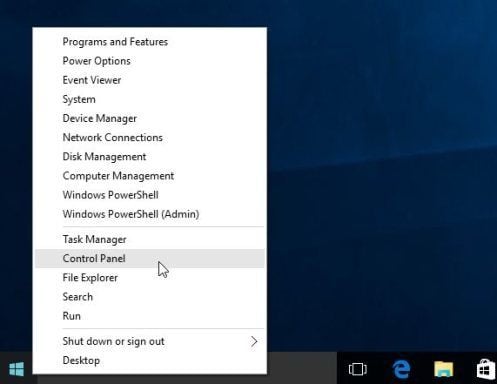
      Control Panel in Windows 10
    2. When the “Control Panel” window opens click on the “Uninstall a program” option under “Programs” category.
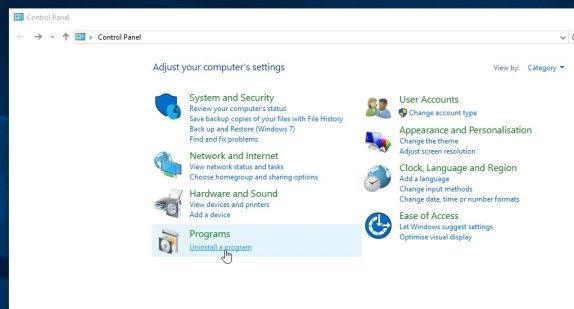
      Uninstall A Program on Windows 10
  1. When the “Programs and Features” screen is displayed, scroll through the list of currently installed programs and uninstall Wajam from WaNetEnhance.
    The malicious program may have a different name on your computer. To view the most recently installed programs, you can click on the “Installed On” column to sort your program by the installation date. Scroll through the list, and uninstall any unwanted or unknown programs.
    If you are having issues while trying to uninstall the Wajam program, you can use Revo Uninstaller to completely remove this unwanted program from your machine.
    [Image: Uninstall Wajam program from Windows]
    If you cannot find any unwanted or unknown programs on your machine, then you can proceed with the next step.

STEP 2: Remove “Wajam” Ads from Internet Explorer, Firefox and Google Chrome

Remove “Ads by Wajam” virus from Internet Explorer

You can reset Internet Explorer settings to return them to the state they were in when Internet Explorer was first installed on your PC.
  1. Open Internet Explorer, click on the “gear icon” [Image: icongear.jpg] in the upper right part of your browser, then click again on Internet Options.
    [Image: Internet Options in Internet Explorer]
  2. In the “Internet Options” dialog box, click on the “Advanced” tab, then click on the “Reset” button.
    [Image: Reset Internet Explorer]
  3. In the “Reset Internet Explorer settings” section, select the “Delete personal settings” check box, then click on “Reset” button.
    [Image: Reset Internet Explorer to its default settings to remove Wajam]
  4. When Internet Explorer has completed its task, click on the “Close” button in the confirmation dialogue box. You will now  need to close your browser, and then you can open Internet Explorer again.
    [Image Reset Internet Explorer settings]

Remove “Ads by Wajam” virus from Mozilla Firefox

If you’re having problems with Firefox, resetting it can help. The reset feature fixes many issues by restoring Firefox to its factory default state while saving your essential information like bookmarks, passwords, web form auto-fill information, browsing history and open tabs.
  1. In the upper-right corner of the Firefox window, click the Firefox menu button ([Image: Firefox Menu button]), the click on the “Help” ([Image: Firefox Help button]) button.
    [Image: Click on the Menu button then Help]
  2. From the Help menu, choose Troubleshooting Information.
    [Image: Troubleshooting Information in Firefox]
  3. Click the “Reset Firefox” button in the upper-right corner of the “Troubleshooting Information” page.
    [Image: Reset Firefox to its default settings to remove Wajam]
  4. To continue, click on the “Reset Firefox” button in the new confirmation window that opens.
    [Image: Click on the Reset Firefox button]
  5. Firefox will close itself and will revert to its default settings. When it’s done, a window will list the information that was imported. Click on the “Finish“.
Note: Your old Firefox profile will be placed on your desktop in a folder named “Old Firefox Data“. If the reset didn’t fix your problem you can restore some of the information not saved by copying files to the new profile that was created. If you don’t need this folder any longer, you should delete it as it contains sensitive information.

Remove “Ads by Wajam” virus from Google Chrome

  1. Click on the “Chrome menu button” (Chrome menu)  on the browser toolbar, select “Tools“, and then click on “Extensions“.
    [Image: Extensions menu in Chrome]
  2. In the “Extensions” tab, remove the Wajam any other unknown extensions by clicking the trash can [Image: Remove an extension from Chrome] icon.
    Basically, if you have not installed an extensions then you should remove it from your web browser.
    If you cannot remove the Wajam extension, and under the trash can you can see the “Installed by enterprise policy” text, then you will need to follow our “Remove Installed by enterprise policy extension from Chrome” guide.
    [Image: Wajam Chrome extensions]

STEP 3: Remove “Ads by Wajam” adware with AdwCleaner

The AdwCleaner utility will scan your computer and web browser for the Wajam adware, and any other malicious programs that may have been installed on your computer without your knowledge.
  1. You can download AdwCleaner from the below link.
    ADWCLEANER DOWNLOAD LINK (This link will open a new web page from where you can download “AdwCleaner”)
  2. Before starting AdwCleaner, close all open programs and internet browsers, then double-click on the AdwCleaner icon.
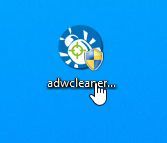
    Start AdwCleaner
    If Windows prompts you as to whether or not you wish to run AdwCleaner, please allow it to run.
  3. When the AdwCleaner program will open, click on the “Scan” button as shown below.
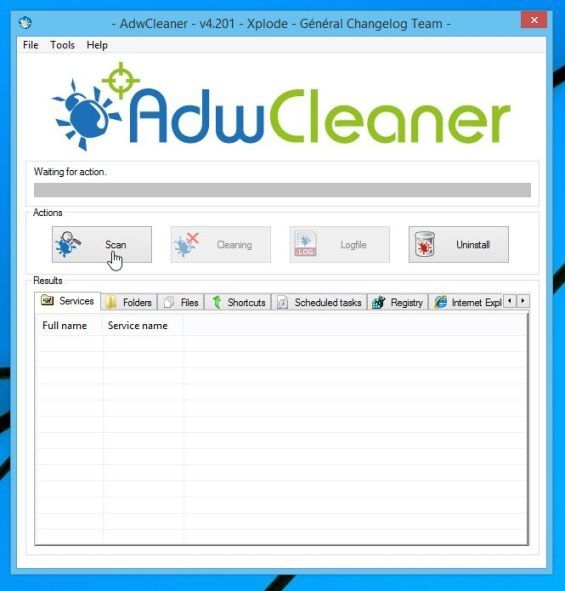
    AdwCleaner Scan button
    AdwCleaner will now start to search for adware that may be installed on your computer.
  4. To remove the malicious files that were detected in the previous step, please click on the “Clean” button.
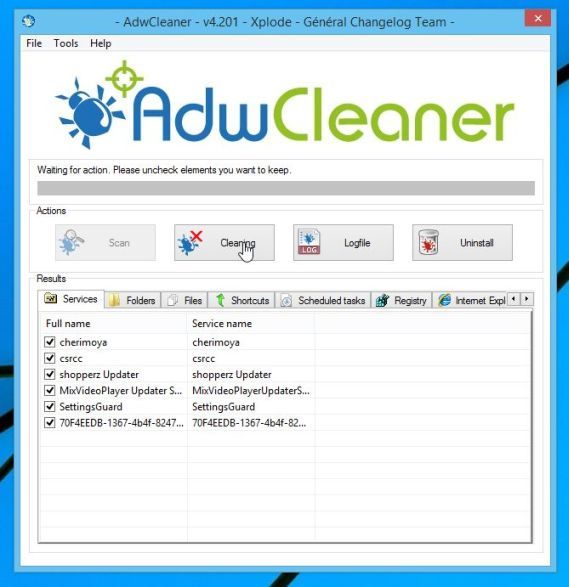
    Remove Ads by Wajam with AdwCleaner
  5. AdwCleaner will prompt you to save any open files or documents, as the program will need to reboot the computer. Please do so and then click on the OK button.
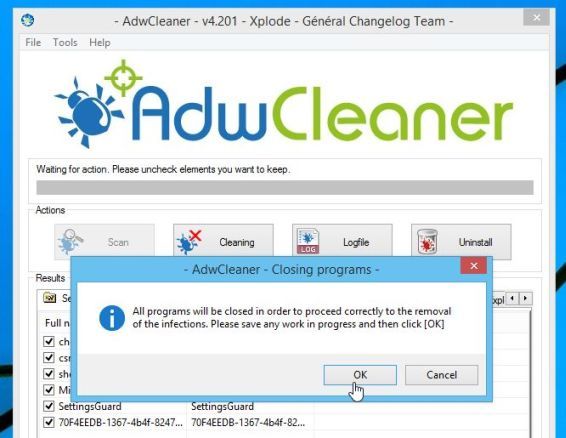
    AdwCleaner removing adware

วันเสาร์ที่ 6 กุมภาพันธ์ พ.ศ. 2559

สอนทำ SEO, การทำ SEO, รับทำ SEO, สอน SEO ฟรี, ติดหน้าแรก Google, ติดอันดับ 1 Google

วิธีปรับความสว่างหน้าจอ Windows 7

วิธีปรับความสว่างหน้าจออย่างถูกต้องใน Windows 7

     ถ้าคุณใช้จอภาพแบบ LCD คุณอาจจะสังเกตเห็นว่าภาพสว่างจ้าจนเกินไป ถ้ามองจอภาพไปนานๆ ก็จะทำให้ดวงตาล้าได้เช่นกัน วิธีแก้ไขปัญหานี้ทำได้ง่ายด้วยการปรับความสว่างของจอภาพให้ถูกต้อง ซึ่งมีวิธีการดังนี้ครับ (สำหรับ Windows 7 )

1. คลิกขวากลางหน้าจอว่างๆ แล้วเลือกคำสั่ง Personalize


2. เมื่อหน้าต่าง Personalization ปรากฏขึ้นมาคลิกคำสั่ง Display


3. คลิกคำสั่ง Calibrate color


4. จากนั้นคลิกปุ่ม Next ไปเรื่อยๆ จนเจอหน้าต่างเหมือนภาพด้านล่างนี้ ให้คุณดูตรง Good gamma นะครับ การปรับความสว่างของหน้าจอที่ถูกต้องคือ จุดตรงกลางจะเป็นสีเทา ไม่เป็นจุดขาว หรือจุดดำ เมื่อเข้าใจตามนี้แล้วก็คลิกปุ่ม Next เพื่อไปยังขั้นตอนถัดไปครับ


5. จะมีแถบสไลด์บาร์แนวตั้งปรากฏขึ้นมาดังภาพด้านล่างนี้ เลื่อนแถบสไลด์บาร์ เพื่อกำหนดความสว่างของจอภาพ พยายามปรับให้จุดในกรอบด้านขวากลายเป็นสีเทา ปรับเสร็จก็คลิกปุ่ม Next ไป


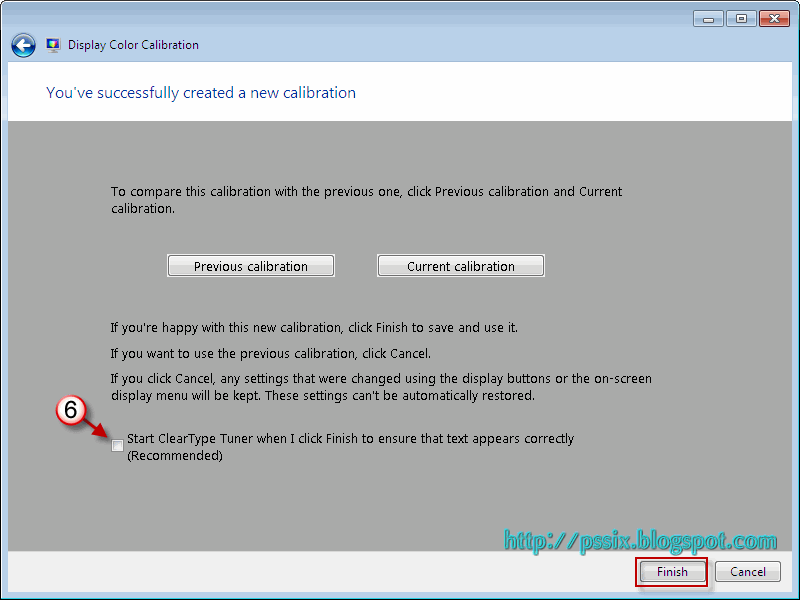
6. เมื่อคลิกปุ่ม Next ไปจนถึงหน้าต่างสุดท้าย ดังภาพด้านล่าง คลิกเอาเครื่องหมายกา ถูก หน้าตัวเลือก Start ClearType Tuner ออก แล้วคลิกปุ่ม Finish ก็ถือว่าเสร็จสิ้นการปรับความสว่างหน้าจออย่างถูกต้องแล้วครับ

วันศุกร์ที่ 5 กุมภาพันธ์ พ.ศ. 2559

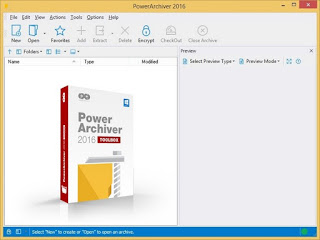
PowerArchiver 2016 Standard & Toolbox 16.00.61 Incl Crack + Key

PowerArchiver%2B2016.png

PowerArchiver 2016 Standard / Toolbox 16.00.61 Multilingual

PowerArchiver 2016 - Full set of powerful tools for both power users and companies. Includes PowerArchiver Pro, PowerArchiver Command Line, PowerArchiver for Outlook, PowerArchiver Backup, PowerArchiver Cloud browser and Encryption Suite with OpenPGP.

PowerArchiver Virtual DVD drive
PA Virtual Drive (PAVD) lets you mount your ISO disc images as Virtual Drives, without having to burn any CD/DVD/BD’s. It is very easy to use, supports several drives and has great shell extensions. It is also usable through PA’s Win7 jumplists or PA Starter. Works on both 32bit and 64bit Windows.

Full CD/DVD/Blu-Ray Burner
- Burn files to Disc – Data burner that lets you burn CD/DVD/Blu-Ray discs in ISO9660 or UDF2 formats, supports unicode and over 4GB file sizes.
- Burn image (.iso) – Quickly burn ISO files to disc. Works from shell extensions as well.
- Copy disc – Copy your CD/DVD/Blu-Ray disc to another Disc or ISO image.
- Erase Disc – Erases your CD/DVD/BD rewritable disc.
- New Disc Image (.iso) – Lets you create new ISO image from your files/folders on hard drive.

Full FTP/SFTP client
- Secure protocols and FIPS certification – Support for SFTP, FTP with SSL and FTP with SSL/TLS protocols. FIPS 140.2 Certified.
- Integration with PowerArchiver – Upload files from archives to FTP and Download them directly to archive, without needing to unpack anything!
- Multiple tabs – Tabbed interface for multiple server connections.
- Quick ZIP and Send – Single button click zips (your choice of formats) and uploads selected file.
- Bandwidth Limiter – limit bandwidth used with easy and visible option.
- Edit and update files – continuously track multiple edited/opened files and update them as needed.
- Ribbon interface – first FTP client with Microsoft Office licensed ribbon interface for easier use (optional).
- Advanced Queue system – with multiple transfers and global transfer limits.
- Disconnect or shutdown – After queue is completed, you can set it to disconnect from the server or even shutdown your computer.
- And much more… – Proxy, SOCKS, Advanced Overwrite options, and more!

Encryption Suite with full OpenPGP support!
- ZIP/ZIPX AES 256 Encryption/Decryption – Full support for industry standard – ZIP/ZIPX 256 AES Encryption, fully compatible with open data standards and all of the major compression utilities. PowerArchiver has The best support for opening various encrypted ZIP archives, fully compatible with all options inside WinZip and SecureZip.
- Encrypt/Decrypt files with OpenPGP standard – Create and Open encrypted OpenPGP files with various different Encryption options. Fully featured!
- OpenPGP Key Manager – Create, Add new OpenPGP keys via fully featured OpenPGP Key Manager.
- FIPS 140-2 certified – Encryption Suite uses FIPS 140-2 certified components for AES encryption.
- Support for PAE and 7-zip formats – Full support for PAE and 7-zip AES encryption formats.
- Multiple/Batch File Encrypt and Decrypt – Encryption Suite supports encrypting and decrypting hundreds of files at the same time.
- Password Policies – Set minimum password strength that your users have to enter.
- Password Manager – Save passwords used for various encrypted files.
- Password Profiles – Predefine your passwords and use them conveniently.

Advanced Enterprise class Backup
- Volume Shadow Copy (VSS) – With VSS, you can backup any file/database on the computer, without closing program using it.
- CD/DVD/BD burner support – Burn your archives directly to the media of your choice.
- 3 local/network destinations – Copy backup up to 3 local or network destinations for maximum safety
- SecureFTP/FTP/Cloud uploads – Upload backups to FTP/SFTP server, FIPS 140.2 certified as well as one of the 6 cloud services supported.
- 7-Zip compression – Use advanced 7zip compression to minimize backup size, or chose between other possible formats such as ZIP, ZIPX, TAR, CAB, etc.
- Detailed logging support – Detailed logs that can be emailed upon completion, or just stored on the hard drive/network.
- Windows Scheduler – PowerArchiver Backup will create and edit Windows Schedules for you, enabling unattended backups, with many advanced options.

Includes PowerArchiver Outlook Plugin
- Can be configured to work automatically without user input.
- Compress in multiple formats (ZIP, ZIPX, 7-Zip, CAB, TAR.GZ) with different settings.
- Powerful 256-bit encryption support with AES256bit ZIP/ZIPX standards. FIPS 140.2 Certified.
- Create SFX (Executable) attachments compressed in CAB or ZIP formats.
- Rename extension of attachment automatically to bypass mail filters.
- Exclusions based on extension with predefined commonly used extensions.
- Name attachment based on first file and filter based on minimum file size.
- Option to include help file with attachment.
- Easy configuration rules for Administrators.
- Windows Installer based installation.
- Superb compatibility with all versions of Outlook, from Outlook XP to Outlook 2013 (both 32bit and 64bit). No crashing or Microsoft Outlook hanging.

Hotspot Shield VPN Elite 5.20.13 Multilingual Incl Crack

Hotspot%2BShield%2BVPN%2BElite%2B5.20.12.png

Hotspot Shield VPN Elite 5.20.13 Multilingual

Hotspot Shield VPN from Anchor is the world’s most trusted internet security solution. With over 75 million downloads, Hotspot Shield VPN for Windows secures more Windows machines than any other competitor VPNs. Hotspot Shield free VPN for Windows secures your web browsing session, protects your online identity from snoopers, encrypts passwords, online shopping information, chats, and downloads.

Custom Internet Security
Hotspot Shield VPN for Windows is a custom internet security application designed and developed specifically for the users of Windows operating system. The bespoke solution works seamlessly on:
• Windows XP
• Windows Vista
• Windows 7
• Windows 8
• Windows 10

Hotspot Shield free VPN for Windows offers protection against malware, phishing and spam sites. It secures the IP address assigned to you by your ISP and assigns you a new US IP address. This makes tracking or monitoring your online activities next to impossible.

Unblock Websites
Corporate offices, schools, colleges and universities are some of the places that won’t let you access Facebook, YouTube, Gmail, game sites and Twitter. Hotspot Shield VPN for Windows allows you to access all such sites without any restrictions. With Hotspot Shield, you can bypass internet filters that restrict access to Facebook or other sites at work or school, giving you uncensored access to what you want.

Surf Anonymously
Online privacy and security are two of the biggest concerns of the current times. Other than snoopers and hackers tracking your online activities, ISPs also keep the log files pertaining to all user activity. It is like living in a glass house where you’re always exposed to vulnerabilities. Hotspot Shield free VPN for Windows protects your IP address, concealing your location from not only snoopers but also from your own ISP. You are able to browse the internet as an anonymous user in complete privacy. Hackers have no chance to track you back to your computer with Hotspot Shield.

Public Wi-Fi Protection
Public hotspots are the places where most of the online attacks take place. Unaware and unprotected people end up losing their online identity, passwords, credit card information and other sensitive data at hotels, restaurants, coffee shops and airports. Public Wi-Fi hotspots have unsecured and unprotected network connections.Thismakes it easier for the snoopers to intercept your data on that particular network. Hotspot Shield VPN for Windows supports encrypted network traffic which secures your online shopping data, passwords, instant messages and more from snoopers. This ensures that neither snoopers nor your ISPs are able to monitor, track or intercept your web activity.

Whats New :
Updates: official site does not provide any info about changes in this version


WinToUSB Enterprise 2.8 + Key


Nh7KG7D.jpg

WinToUSB Enterprise 2.8 + Key


Description
WinToUSB Enterprise – is a handy program that allows you to install Windows on a USB flash or hard drive and run Windows from that drive. This easy to use program provides simple instructions to install an ISO or CD/DVD image to your USB drive. Once installed, users can easily deploy Windows from the image on the USB drive.

Features:
• Easy-to-use wizard interface that provides step-by-step instructions for installing Windows/WinPE on a USB drive.
• Install Windows/WinPE from an ISO image or CD/DVD drive.
• Support for Windows 7/8/8.1/10 Technical Preview/2008 R2/2012/2012 R2 and WinPE 2/3/4/5.
• Use any edition of Windows 8/8.1/10 Technical Preview to create Windows To Go USB drive.
• Support for MBR and GPT disk layouts.
• Don’t need install WAIK (Windows Automated Installation Kit) or WADK (Windows Assessment and Deployment Kit).
Important notes:
• Windows 7/2008 R2 does not have built-in USB 3.0 support, so Windows 7/2008 R2 will have to be booted from a USB 2.0 port.
• USB flash drives are very slow. It takes a long time to install and run Windows from a USB flash drive, highly recommend using a USB hard disk.
• Windows To Go drives can be booted on different computers, so you can carry it to anywhere and use it on any computer.
• Windows 7/2008 R2 is not completely portable. You may have activation and driver problems when booting on different computers.
• You need to be an administrator on the computer you are installing the WinToUSB on.

Requirements:
OS: All Windows Support

What's new in this release?
* Support for creating Windows To Go directly from a wim, esd or swm file
* Fixed bug: Unable to list partitions on mbr disk in some cases
* Chinese Traditional language support
* Fix other minor bugs

• Homepage - http://www.easyuefi.com/wintousb/

Install Notes:
==> DisConnect/Disable the Internet *Most-Important
==> Install the Program
==> Use the Given "KEY" -=OR=- Use "KeyGen" to Activate
==> Enjoy ...


Download

Avast! Pro Antivirus & Internet Security & Premier 2016 11.1.2253 Final

avast%2521%2BPro%2BAntivirus%2BInternet%2BSecurity%2BPremier%2B2016%2B11.1.2253%2BFinal.jpg

avast! Pro Antivirus / Internet Security / Premier 2016 11.1.2253 Final

Our most advanced security suite adds military-grade data shredding and automatic software updates in addition to antivirus, firewall, and Home Network Security. avast! is only the most trusted name in antivirus, actively protecting more than 200 million PCs, Macs and Androids.

Automatic software updates
Hackers love to exploit old software. It’s the weakest link in most people’s security. Avast Premier automates software updating so you don’t have to think about it.

Putting you a few steps ahead
Looking for the ultimate? You're in the right place. In addition to all the features of Internet Security, you are getting advanced security measures keeping your PCs and network even safer.

Yes, your PC can run it
If your PC can run the full version of Windows 8.1, it can run Premier. Period.

System Requirements
You need at least Windows XP (with SP2) installed. Windows Vista, 7, 8, and even 8.1 are fully supported (unless your device runs the Starter or RT edition) in both the 32- and 64-bit variant. A 10-year old Pentium 3 processor will do, with 128 MB RAM and 2 GB of hard-drive space. And now imagine the stellar performance with your new hardware!

Whats New
+ New firewall driver for Win8/10 - fixes issues with non working firewall
+ SecureLine start is faster - new OpenVPN method
+ Easier turning off email signatures
+ Faster loading of passwords list
+ Fixed installation of SafeZone browser
+ Extensions are now Firefox 64-bit compatible
+ SafeZone browser: Added security extension (phishing protection)
+ SafeZone browser: Fixed Pay mode crashes
+ SafeZone browser: Settings and bookmarks now synced to Pay mode (after browser restart)

+ Security fixes
avast%2521%2BPro%2BAntivirus%2B%2526%2BInternet%2BSecurity%2B%2526%2BPremier%2B2016%2B11.1.2253%2BFinal.jpg